YouTube Create: Video editor
- 4.7
- Rating
- 10.00M
- Installs
- Free
- Price

 Analysis by App-foxy
I tested YouTube Create as a practical mobile editor rather than treating it as just another way to trim a clip. The most useful question is simple: can I take ordinary phone footage, turn it into something watchable, and get it ready for YouTube without feeling as if I am operating a miniature desktop suite? My answer is mostly yes, especially for short-form creators, casual channel owners, students, and anyone who wants a straightforward starting point.
This free app from Google LLC sits in the video players and editing category, and its current beta status is important to keep in mind. It feels designed around reducing the distance between recording and publishing. That focus gives it a friendly workflow, but it also means experienced editors may notice fewer fine controls than they would in a more established mobile editor. I found the best results came from planning a small story first, then using the app to clean it up rather than expecting it to rescue completely unorganized footage.
From a messy camera roll to a finished video
I begin with the camera roll because the editing experience depends as much on choosing useful footage as on cutting it. In this section, I’ll look at a simple way to turn scattered clips into a clear sequence, then consider what changes when a project grows heavier and puts more pressure on a phone.
You May Also Like

 Blood Strike: 2.5 Anniversary
Blood Strike’s Loadouts Turn Every Drop Into a Tactical Gamble
A close look at Blood Strike’s custom loadouts: how fast access to signature weapons reshapes its battle royale rhythm, rewards preparation, and narrows the gap between fights.

 Pandora - Music & Podcasts
Pandora’s Music Is Easy to Start, but Harder to Recover
Pandora’s strength is its low-effort path from a seed to a station. Its weak spot is how much confidence it asks you to place in connection, setup, and quiet recovery.

 8 Ball Pool
 Is Built on Rivalries, Rematches, and Routine
A close look at the rivalries, rematches, shared routines, and unanswered safety questions that turn a quick pool match into a persistent mobile community.

 Samsung Music
’s Quiet Strength Is Playing What You Already Own
Its reach comes less from spectacle than from dependable access to a personal library. That simplicity is both the app’s strongest retention engine and its ceiling.

 AccuWeather: Weather Radar
AccuWeather Review: A Quick, Clear Forecast for Everyday Decisions
For everyday plans, the best forecast is the one you can understand quickly. AccuWeather makes rain timing, radar, and local conditions easy to act on, with a few trade-offs.

 Hill Climb Racing
Why Hill Climb Racing Still Turns Crashes Into One More Run
A tiny car, a bumpy hill and one more upgrade: Hill Climb Racing keeps resurfacing because its simple chaos makes every near-miss feel personal.
More From Our News Desk



Starting with the right material
My first useful habit with this editor was to begin outside the timeline. Before importing anything, I selected the clips that actually served the idea: an opening shot, the main action, a detail, and a closing moment. That sounds obvious, but it matters more on a phone because a crowded camera roll can make editing feel slower than it needs to be. YouTube Create works best when I arrive with a rough order in mind instead of adding every recording and hoping the story appears later.
A realistic example is a quick café recommendation. I might record the entrance, a close view of the drink, one spoken impression, and a final shot of the table. In the editor, those clips become a compact sequence rather than a collection of unrelated memories. The app is appealing here because the task is not to produce a film with complex visual effects; it is to make a clear piece of content that feels intentional.
I also found it helpful to separate clips by purpose. A talking clip carries the explanation, while background footage gives the viewer something to look at during pauses. That distinction makes later decisions easier. If a spoken section runs long, I can cover a cut with a detail shot instead of leaving an awkward jump on screen. This is a small workflow improvement, but it is one of the most useful ways to get more from a simple editor.
Building the first cut
Once the footage is in place, I start by shortening the beginning and ending of every clip. Phone recordings often include a hand reaching for the device, a moment of hesitation, or a sentence that starts before the speaker is ready. Removing those edges immediately improves the pace. I prefer making this rough cut before adding text, music, or other decoration, because visual polish can distract from a sequence that is still too long.
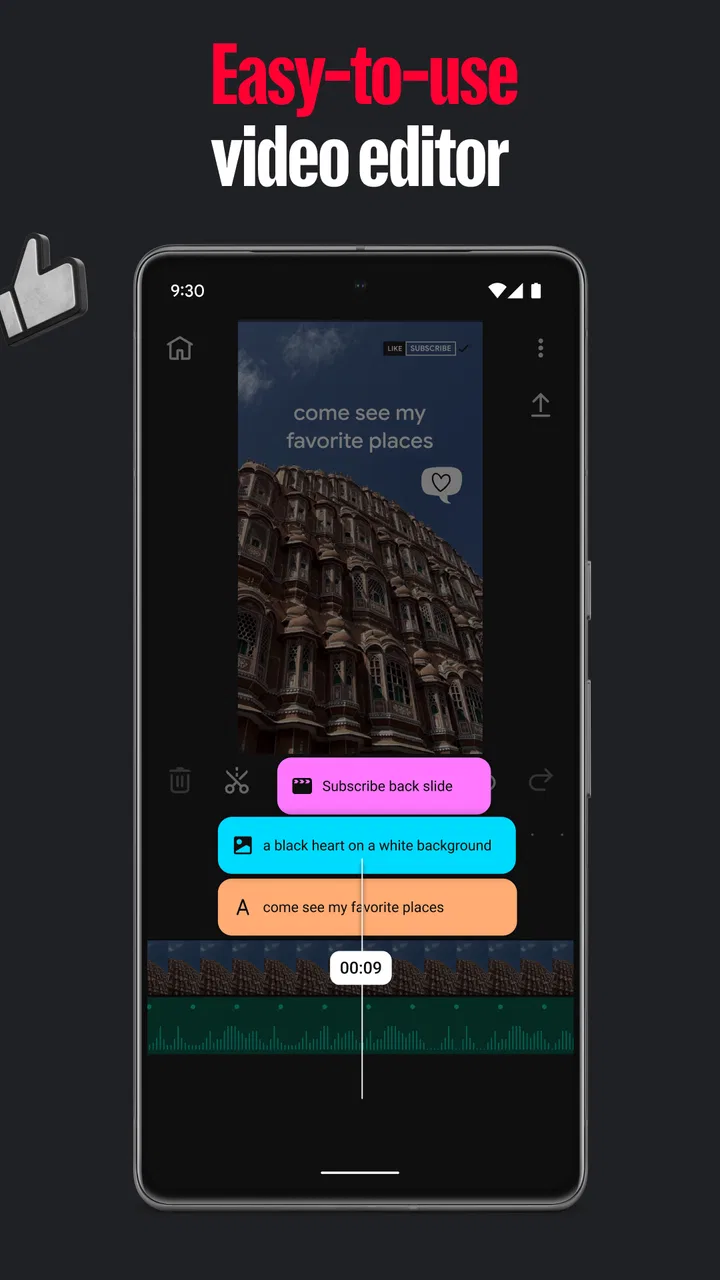
The timeline is most comfortable when I make one decision at a time. First I establish the order. Then I adjust the duration of each shot. After that I listen to the spoken parts and decide where supporting footage should cover a transition. This staged approach is especially useful for beginners because it prevents the common mistake of spending several minutes styling a clip that will eventually be deleted.
For a vertical social video, I would keep the opening especially direct. A viewer should understand the subject quickly, whether the video is a recipe, a small travel note, a tutorial, or a personal update. YouTube Create can help assemble that structure, but it cannot decide what the viewer needs to know first. The strongest improvement still comes from choosing a clear opening sentence and removing anything that delays it.
Making speech easier to follow
Voice is where a basic mobile edit often succeeds or fails. I listen for changes in volume, distracting pauses, and background noise before I worry about visual effects. If the main message is difficult to hear, a stylish transition will not fix the experience. I would rather use a plain cut with understandable speech than cover a weak recording with layers of music and text.
One practical trick is to keep background music quieter than instinct suggests. Music that sounds pleasantly energetic while editing can become tiring once it sits beneath a voice. I make a short test by listening through the phone speaker, because that is closer to how many people will encounter a casual mobile video than headphones are. If the words remain clear there, the balance is usually safer.
Captions and on-screen text also need restraint. I use text to reinforce a key point, identify a place, or make a spoken phrase accessible when someone watches without sound. I avoid turning every sentence into a separate graphic. Too much text competes with the footage and makes a short video feel busier than it really is. The app is most useful when its editing tools support the message instead of becoming the message.
Adding personality without losing clarity
After the structure works, I look at transitions and visual touches. For this kind of app, simple is usually better. A clean cut often feels more natural than a transition between every shot. If two clips have a noticeable change in position or lighting, a supporting detail shot can hide the join more effectively than an elaborate effect.
The same principle applies to music. I treat it as atmosphere, not as proof that the video is finished. A cooking clip may benefit from a light rhythm, while a personal explanation may need almost none. I also check whether the music changes the mood in a way I did not intend. A cheerful track under a serious comment can make the whole edit feel careless.
One non-obvious advantage of this workflow is that it gives me a repeatable template without forcing every video to look identical. I can keep the same order of operations—hook, explanation, supporting images, conclusion—while changing the subject. That consistency is valuable for a small channel because it reduces decision fatigue. I spend less time wondering what to do next and more time improving the actual idea.
The handoff from editing to publishing
The important handoff is the moment the project leaves the editor. A finished timeline is not automatically a finished upload. Before exporting, I watch the complete video from beginning to end, including the first second and the final frame. This catches clipped words, sudden volume changes, and endings that stop so abruptly they feel accidental.
I also check the video in the orientation in which I expect people to watch it. A vertical project can look fine while editing and still feel cramped if the original footage was recorded horizontally. Mixing orientations is sometimes unavoidable, but I would rather crop one important shot carefully than let several clips appear with inconsistent framing. Planning the camera orientation before recording is one of the easiest ways to avoid this problem.
Storage and patience matter at this stage. Editing on a phone involves source clips, the project, and the exported result, so I avoid creating multiple full versions unless I need them. I keep the original recordings until I have watched the export successfully, then clean up only what I no longer need. That habit protects against the frustrating situation where a project appears complete but the final file has a problem.
The app’s connection to YouTube is naturally attractive for creators already working in that ecosystem. It makes the journey feel more direct than moving footage through a desktop editor, a separate transfer step, and then a publishing tool. Still, I do not assume that a smooth editing handoff removes the need to review the upload itself. Titles, descriptions, audience choices, and the final presentation remain publishing decisions, not editing decisions.
What the result looks like in everyday use
For a short café video, my finished result would have a quick exterior shot, a close-up that establishes the subject, a concise spoken opinion, and a final image that gives the viewer a reason to remember the place. The value is not that the app invents a creative concept. The value is that it lets me turn a handful of phone clips into a coherent sequence without opening a full desktop-style editor.
This is where the app feels strongest: small projects with a clear destination. A beginner can learn the basic rhythm of cutting, arranging, balancing sound, and checking an export. A regular creator can use it for quick updates when speed matters more than elaborate customization. Someone making a school presentation or a family travel recap may also appreciate the reduced friction, provided the project does not demand advanced compositing.
The audience size suggests that the app has already reached a broad group of Android users, with more than five million installs. Its average score is 3.7 from around twenty thousand ratings, alongside roughly one thousand written reviews. I read that combination as a useful warning not to expect universal satisfaction: the concept is accessible, but a beta editor will naturally suit some workflows better than others.
Where the workflow starts to break
The first limitation appears when I want detailed control rather than a clean basic edit. If I need complex layers, precise keyframes, elaborate masking, advanced color work, or a highly controlled audio mix, I would move to a more specialized editor. YouTube Create is not the tool I would choose for a demanding music video, a commercial with exact brand requirements, or a project that depends on intricate visual effects.
Another friction point is the difference between “easy to use” and “fast for every task.” A simple project can move quickly, but a messy project still requires human sorting. The app cannot know which repeated takes are meaningful, which pauses are intentional, or which part of a conversation should become the opening. If I import too much footage, the friendly interface does not eliminate the time needed to review it.
Beta software also changes the way I judge reliability. I am comfortable using it for a short video that can be rebuilt if necessary. I would be more cautious with a one-time event where I cannot recreate the source material. My practical rule is to preserve the original clips and watch the complete exported file before deleting anything. That is good editing hygiene in general, but it becomes especially important when the tool is still evolving.
Creators who work across several platforms should think about their full delivery path. If the same project must be adapted repeatedly for different formats, with separate versions for different crops, captions, and branding, a more flexible editor may save time in the long run. The direct YouTube orientation is a strength for YouTube-first users, but it may feel limiting for someone whose main goal is a multi-platform production pipeline.
Who should use it and who should choose something else
I would recommend this app to a person who records on an Android phone, wants to make understandable videos without a steep learning curve, and values a direct route from raw clips to a YouTube-ready result. It is particularly suitable for short tutorials, simple reviews, daily updates, travel snippets, and beginner channel experiments. The free price also makes it an easy tool to try before committing time or money to a more demanding setup.
I would not make it my first recommendation for an editor who already knows exactly how they want to manipulate every layer. If you routinely need detailed audio repair, complex titles, precise motion control, or extensive color correction, the simplicity that helps beginners may become a restriction. In that situation, a mature mobile editor or desktop software is likely the better choice, even if the learning curve is steeper.
The Teen content rating is another reason to think about the intended audience rather than assuming it is a universal family tool. Parents choosing an editing app for a younger child should consider that rating alongside the child’s overall use of video platforms. The application itself may be used for harmless projects, but the wider publishing environment deserves the same attention as the editing features.
My final take after following the complete workflow
YouTube Create succeeds when I treat it as a focused bridge between phone footage and a finished YouTube video. It helps me make sensible cuts, shape a short story, improve the presentation, and move toward publishing without the weight of a professional suite. The strongest results come from clean source material, a simple plan, and a willingness to edit for clarity before adding style.
It is not a replacement for every mobile or desktop editor, and its beta status means I would keep backups for anything important. Even so, I found its purpose clear and its learning curve approachable. If your usual alternative is doing nothing because full editing software feels excessive, this is a worthwhile free starting point. If your usual alternative already gives you the detailed control you need, switching may not improve your workflow.
My recommendation is therefore practical rather than enthusiastic for its own sake: try it for a small, low-risk project first. Record a short explanation, add a few supporting shots, balance the voice, export, and watch the complete result on the phone you normally use. If that process feels natural, the app can become a useful part of your routine. If you immediately miss deeper controls, you have learned that your needs belong with a more advanced editor.
FAQs for YouTube Create: Video editor
01What is YouTube Create and how does it differ from the regular YouTube app?
YouTube Create is a specialized app designed to enhance video editing capabilities specifically for creators. Unlike the regular YouTube app, which primarily focuses on video consumption and basic uploading features, YouTube Create offers advanced editing tools, templates, and effects that are tailored to help creators produce professional-quality content directly from their mobile devices.
02Is YouTube Create free to use, or does it have any in-app purchases?
YouTube Create is free to download and use, offering a range of essential editing tools at no cost. However, it may offer in-app purchases for premium features, additional templates, or effects that enhance the editing experience. These purchases are optional and intended to provide more advanced functionalities for those who wish to upgrade their content creation capabilities.
03What devices and operating systems are compatible with YouTube Create?
YouTube Create is available for both Android and iOS devices. To ensure optimal performance, it is recommended to have a device running on Android version 8.0 or higher, or iOS 12.0 or later. Compatibility with older devices may be limited, affecting the app's functionality and performance.
04How user-friendly is YouTube Create for beginners in video editing?
YouTube Create is designed with user-friendliness in mind, making it accessible for beginners. The app features an intuitive interface with easy-to-follow tutorials and guided steps for each editing process. Beginners can quickly learn to utilize basic editing tools, while more advanced users can explore additional features to enhance their videos.
05Does YouTube Create support collaboration or sharing features for team projects?
Currently, YouTube Create focuses on individual content creation, and while it does not support direct collaboration features, users can easily share their projects via cloud services or social media platforms. This allows team members to review and provide feedback, though real-time collaborative editing within the app is not available at this time.
Pros
- User-friendly interface for quick video edits.
- Wide range of editing tools available.
- Easy integration with YouTube platform.
- High-quality export options available.
- Supports various video formats seamlessly.
Cons
- Limited advanced editing features.
- Requires internet for full functionality.
- Ads may interrupt editing process.
- Heavier battery usage during editing.
- Not available on all devices.

YouTube Create: Video editor
Gallery